Comprehensive Guide to Optimizing Your Home Office Tech Setup

The Bottom Line: Your home office setup either works for you or against you. Optimize carefully—skipping steps or cheap gear costs more in time and frustration than you think.
1. Assess Your Workspace and Ergonomics
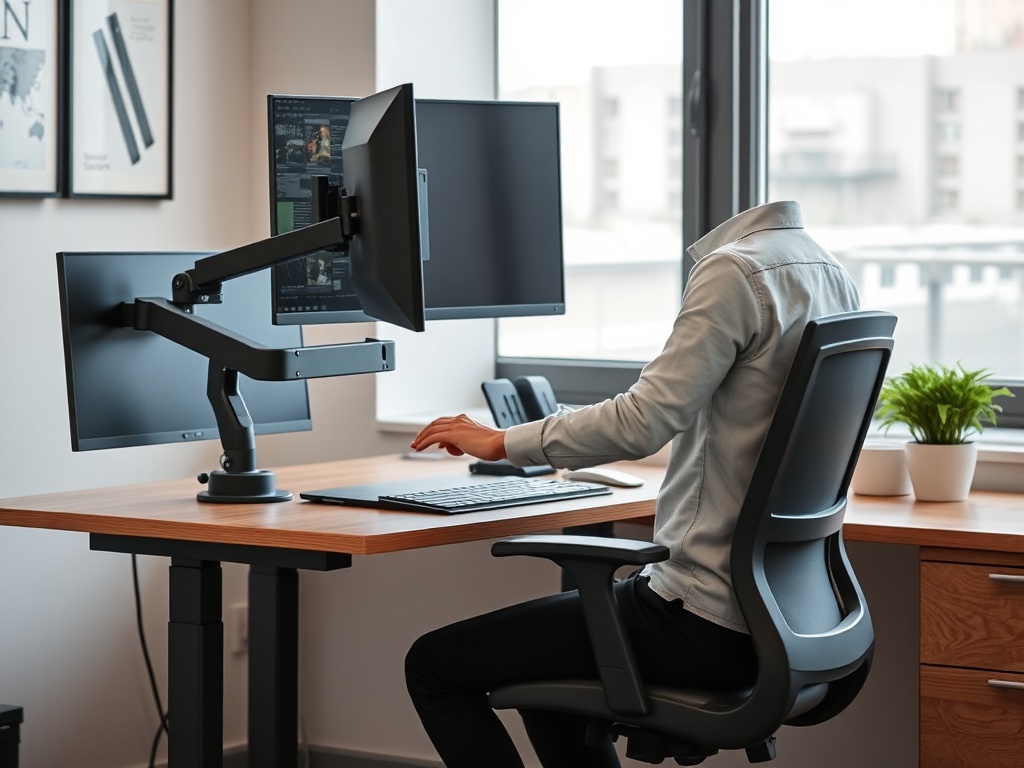
Start by mapping your space. Measure desk dimensions, chair height, and monitor distance. The goal is comfort without sacrificing accessibility. Avoid cramped setups where reaching for ports or peripherals becomes a "Friction Factor." Consider adjustable monitor arms and sit/stand desks to keep posture neutral. Remember, a high chair doesn't compensate for a cramped desk—spacing matters.
2. Prioritize Essential Hardware
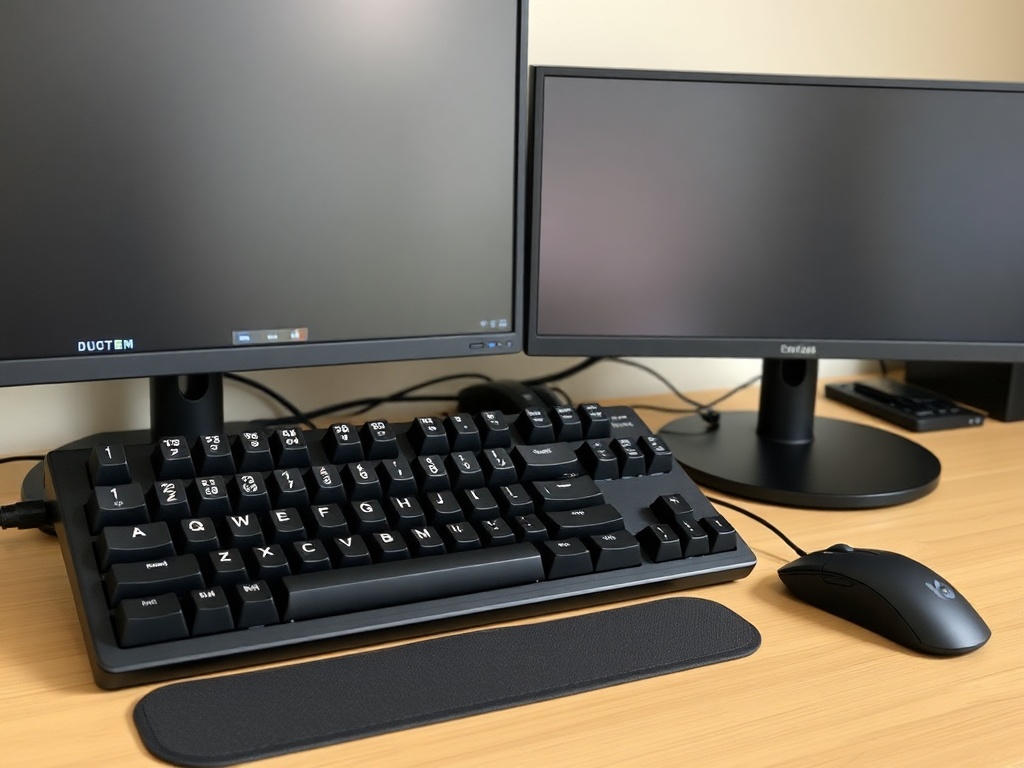
Not all tech is created equal. For keyboards, prioritize mechanical or high-quality membrane switches. Cheap, flat keyboards add friction over time. For mice, pick something that fits your hand and allows precision movements without strain. Monitors should have IPS panels with 75Hz+ refresh rates for smooth motion. Two-monitor setups often trump a single ultrawide for productivity if your desk supports it. Verify weight and build quality—flimsy monitors and stands are a long-term headache.
3. Optimize Connectivity
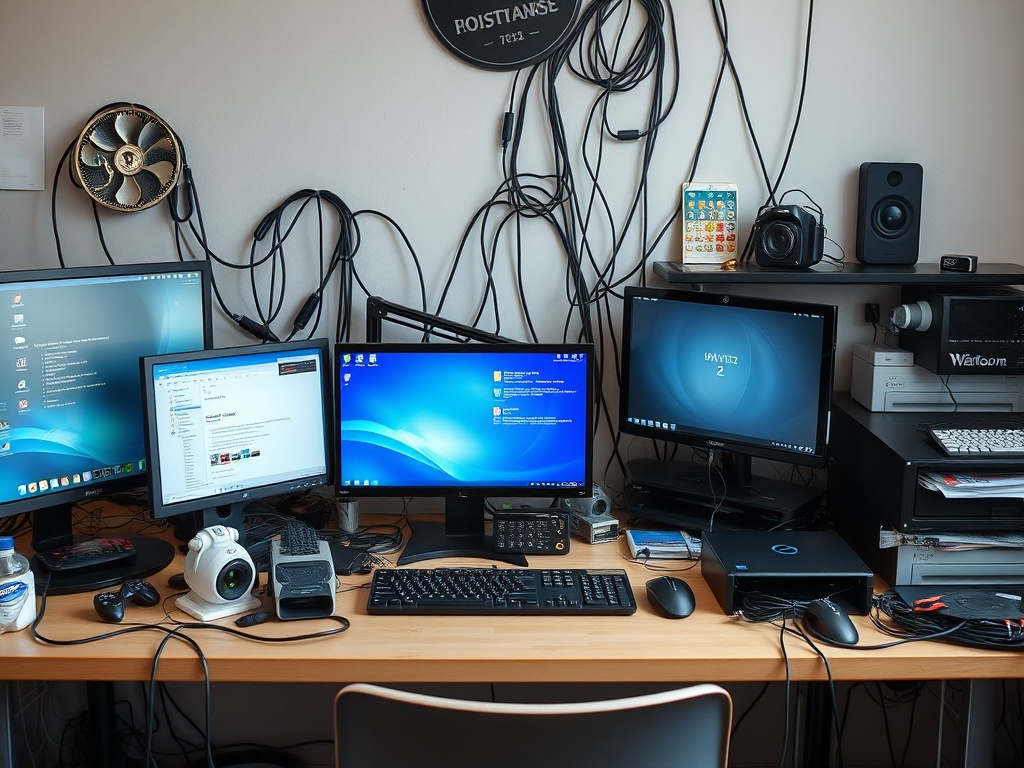
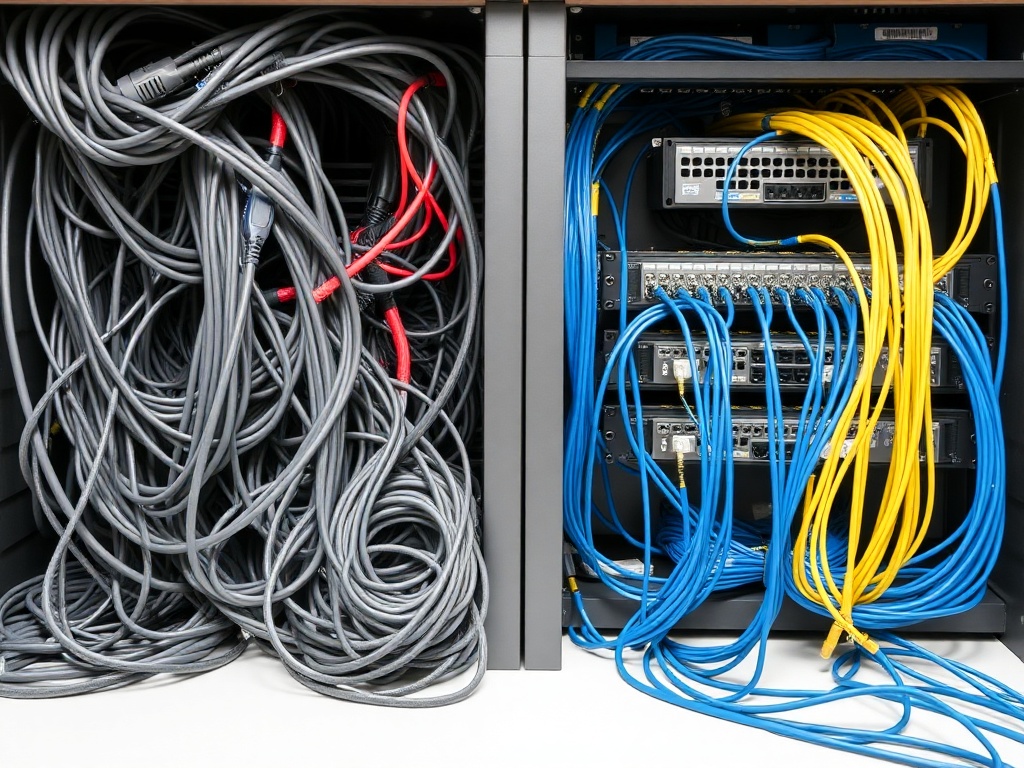
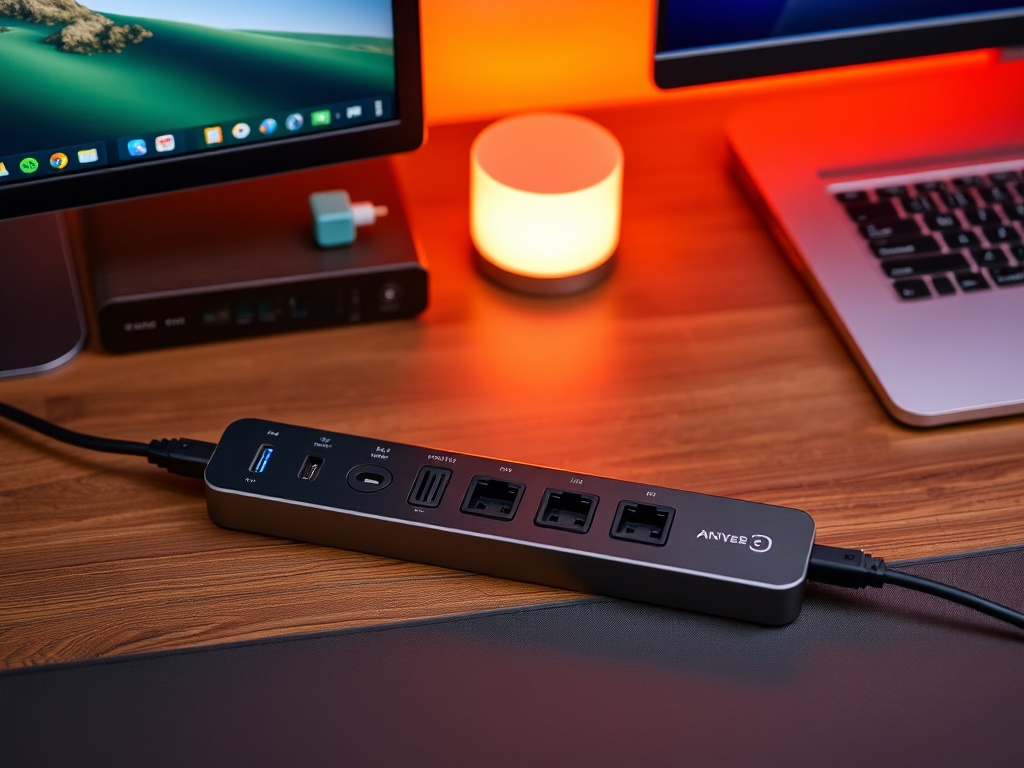
Cable management is often overlooked but critical. Poorly routed cables create friction points and trip hazards. Invest in quality USB hubs, preferably powered, to minimize dongle swaps. Keep ethernet cables for reliable LAN connections; Wi-Fi is convenient but can spike latency during video calls. Label cables clearly. The Friction Factor rises sharply when you waste minutes untangling or re-plugging connectors.
4. Streamline Power and Charging
Power strips and surge protectors are a must. Avoid daisy-chaining cheap outlets. Use dedicated chargers for high-draw devices like laptops to avoid throttling. Anker or equivalent brands for cables and chargers reduce the need for repeated replacements. If your devices support USB-C PD, consolidate power bricks to a single hub. Track wattage to prevent overloading circuits, especially in older homes.
5. Implement Backup and Storage Strategies
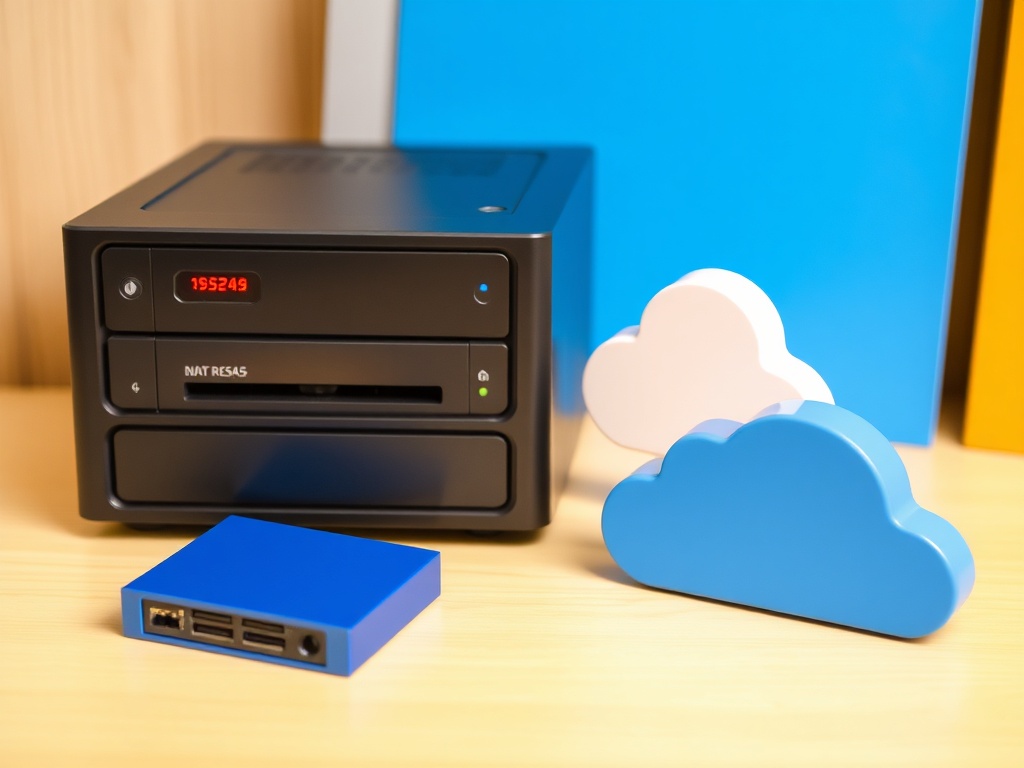
Fast SSDs for active work and larger HDDs for archival backups keep workflows smooth. Redundancy is key: at minimum, a local backup plus cloud sync. Network-attached storage (NAS) can centralize files for multiple users but comes with a setup cost. Avoid underpowered or cheap NAS units—they are slow and often unreliable, creating more Friction Factor than they solve. Automate backups where possible.
6. Optimize Software Environment
Minimalism wins. Keep only essential apps active. Disable auto-start for non-critical software. Update drivers and OS regularly but on a schedule, not automatically mid-project. Keyboard shortcuts reduce friction; map macros for repetitive tasks. Consider virtual desktops to separate projects. Avoid flashy UI skins that slow down systems without benefit.
7. Monitor and Maintenance
Track peripheral wear and thermal performance. Dust keyboards and vents periodically. Replace cables showing wear signs before failure. Monitor network stability; Wi-Fi signal drops are a hidden friction factor. Weight-test peripherals and reposition equipment if necessary. Regular audits prevent small annoyances from becoming productivity killers.

8. Who Should Skip This Guide
If you don’t work from home, rarely use tech beyond browsing, or your employer provides a managed workstation, skip this. Your time is better spent elsewhere. For high-end power users, consider additional considerations like docking stations, pro audio setups, or specialized monitors.