
Optimize Your Laptop for Maximum Performance and Longevity

The Bottom Line: In this guide, we will walk through the essential steps to ensure your laptop performs at its peak and lasts as long as possible. If you're tired of slowdowns and hardware failures, this is for you.
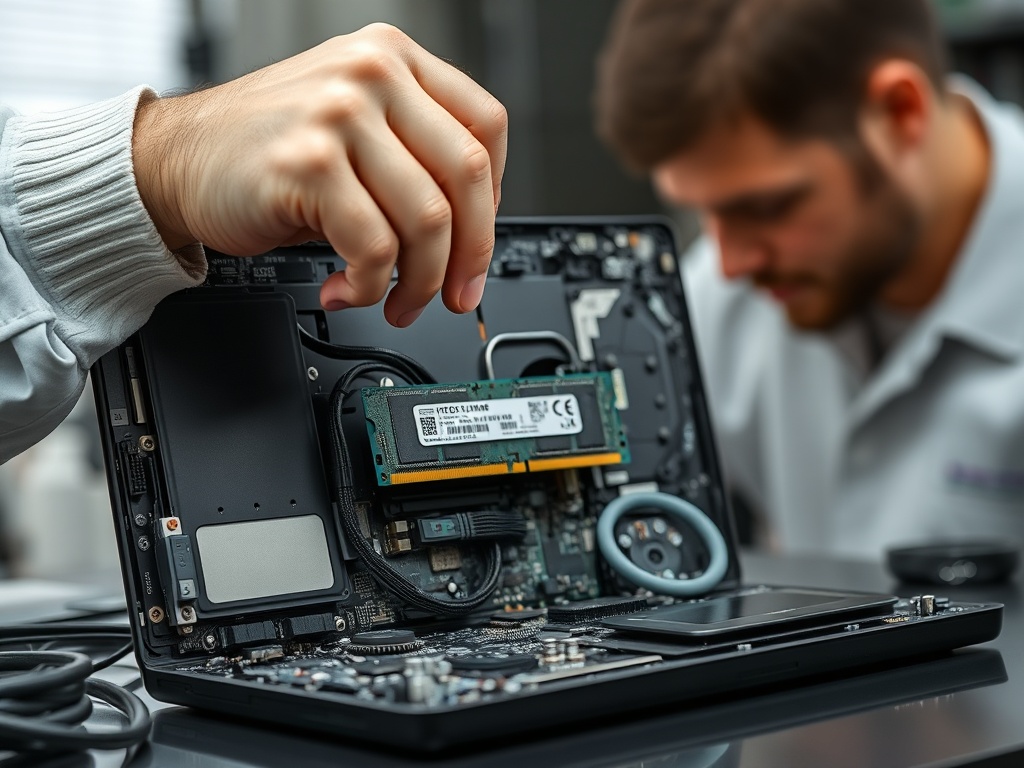
Before diving into the specifics, let's discuss why it matters. Optimizing your laptop isn’t just about clearing out the digital clutter—it’s about ensuring that the internal components remain efficient, cool, and functional for as long as possible. For instance, neglecting regular thermal management can lead to overheating, which kills the lifespan of internal components.
1. Upgrade Your Storage
Solid-state drives (SSDs) are an absolute must. If you haven’t swapped out your hard drive for an SSD, do it now. SSDs are faster, more durable, and significantly increase overall system performance.
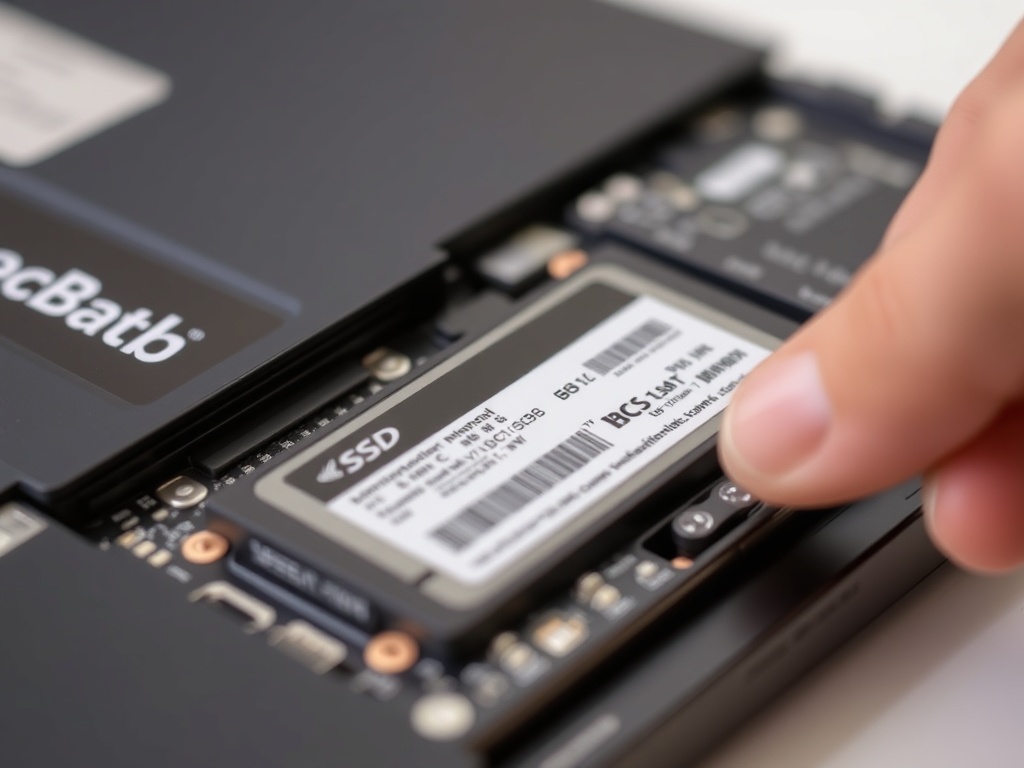
The Bottom Line: Replacing an HDD with an SSD will drastically improve boot times, file access, and application launches. It's one of the easiest ways to breathe new life into an aging laptop.
2. Clean Your Cooling System
Laptops can heat up quickly, especially when used for resource-heavy tasks like gaming or video editing. This leads to thermal throttling, where the processor intentionally slows down to avoid overheating. Regularly clean your cooling system and replace the thermal paste if needed. This ensures that your laptop runs efficiently and cools down as expected.
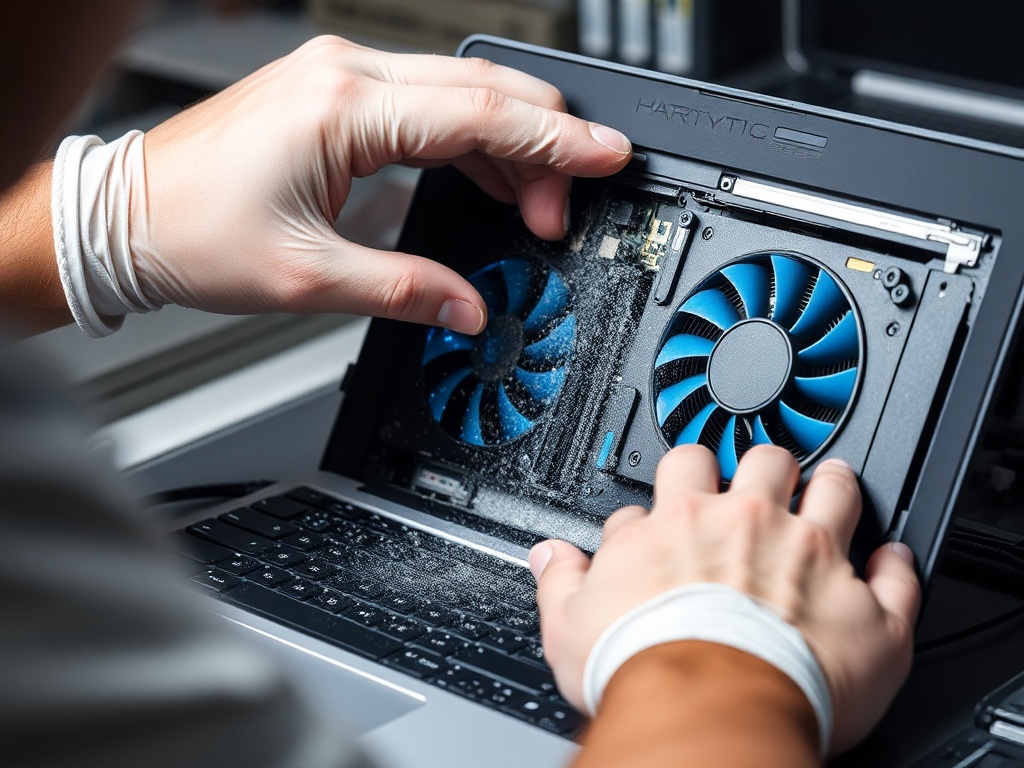
The Bottom Line: The cleaner the cooling system, the better your laptop will perform under heavy workloads. Even a minor build-up of dust can cause significant performance hits.
3. Optimize Your Battery Settings
Battery life is critical, especially if you need your laptop to last through long workdays or travel. To get the most out of your battery, adjust the power settings in your operating system. Turn off unnecessary background apps, lower the screen brightness, and disable power-hungry features when they aren't needed.
Another tip: use your laptop while plugged in for optimal performance. Many laptops perform better when connected to a charger, as it allows the system to draw more power from the wall rather than relying on the battery.
4. Manage Startup Programs
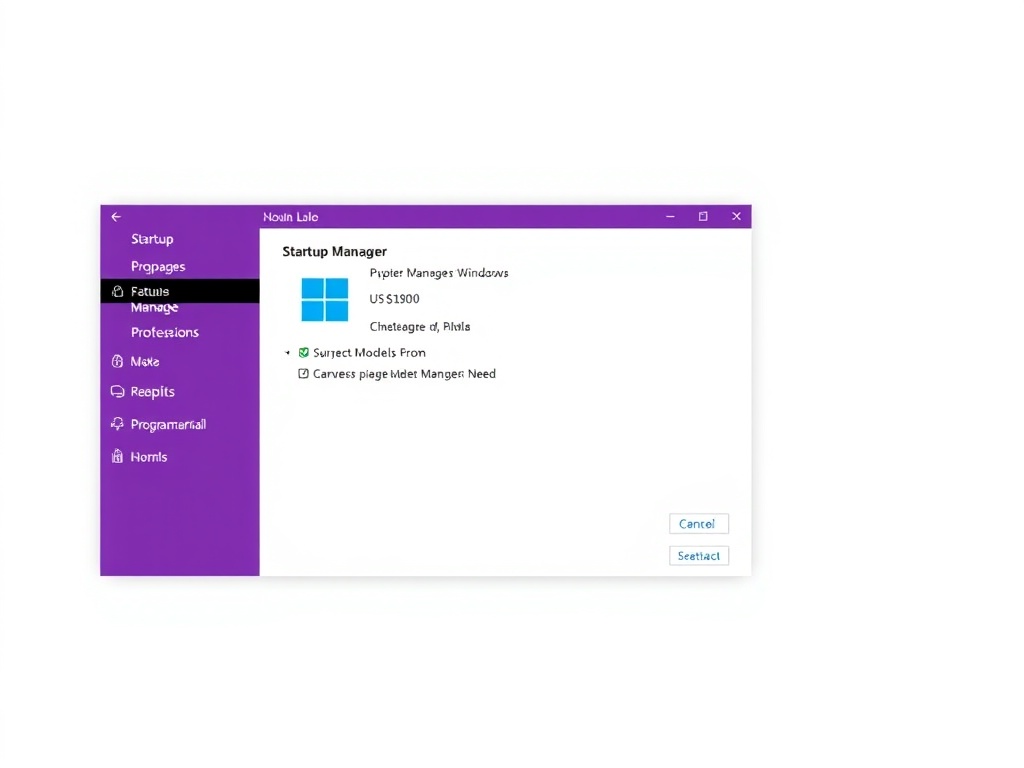
Having too many programs launch when your computer boots up can significantly slow down your system. Go into your system’s settings and disable unnecessary startup applications. This will free up resources and speed up the boot process.
5. Run Regular Maintenance
Regular maintenance is a must for long-term performance. This includes running disk cleanup tools, updating your operating system, and checking for malware. Malware can significantly reduce system performance, so it’s essential to keep your laptop secure and free of unnecessary files.
The Bottom Line: Regular maintenance ensures your laptop continues to run smoothly. It's a quick task that yields significant long-term benefits.
Conclusion
By following these steps, you can ensure your laptop runs faster, lasts longer, and stays cooler under pressure. If you’re still running an old HDD, haven't cleaned your cooling system in years, or haven't checked for malware in a while, it's time to get serious about laptop optimization.