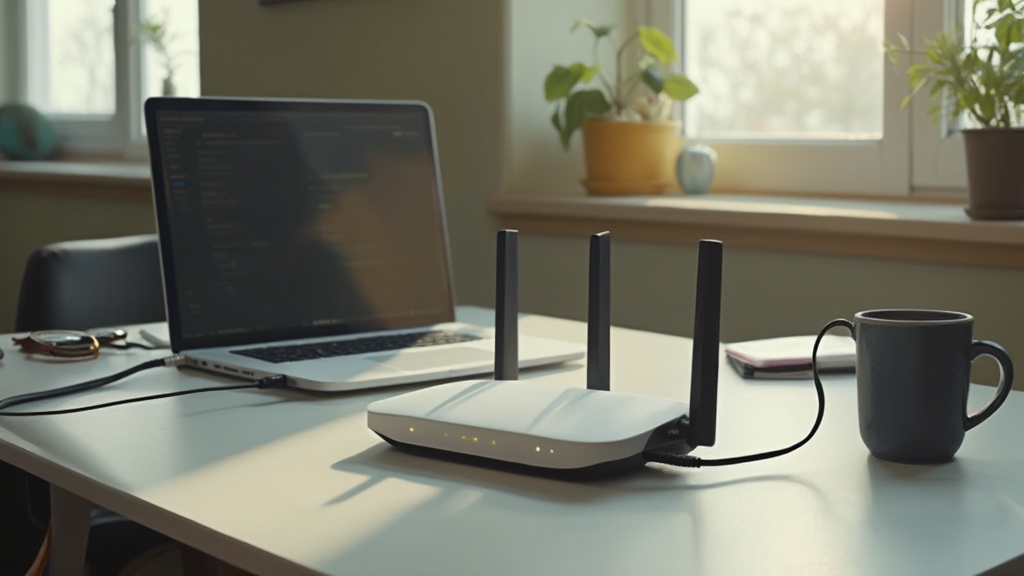
How to Secure Your Home Wi‑Fi in 2026: Practical Steps That Actually Work

Ever wonder why your Wi‑Fi feels like an open invitation to strangers? In 2026, the average home network is still the weakest link in your digital security chain. Let’s lock it down with real‑world tactics you can apply today.
Why securing Wi‑Fi matters for the skeptical consumer
Data breaches aren’t just corporate headlines; a compromised router can hand hackers access to everything behind it—smart thermostats, cameras, even your work VPN. As a former IT Ops manager, I’ve seen the “friction factor” of a busted network cost companies thousands in downtime. Your home should be a fortress, not a free‑for‑all.
What’s new in Wi‑Fi security for 2026?
Two major upgrades landed this year:
- WPA3‑SAE (Simultaneous Authentication of Equals) – replaces the outdated WPA2‑PSK and protects against offline password cracking. Wi‑Fi Alliance confirms WPA3 is now mandatory for all new routers.
- Enhanced firmware signing – manufacturers now digitally sign updates, making rogue firmware harder to install. The FCC recommends only using devices that support signed updates.
Step‑by‑step: Harden your home Wi‑Fi
1. Verify your router supports WPA3
Check the spec sheet or admin UI. If it’s a 2020‑or‑newer model, you’ll likely see an option for “WPA3‑Personal” or “WPA3‑Enterprise.” If not, consider upgrading to a mesh system that does. Don’t settle for “WPA2‑PSK” – it’s a known weak point.
2. Change default admin credentials
Manufacturers love the “admin/admin” combo. Replace it with a unique username and a long, random password (think 12+ characters, mixed case, numbers, symbols). Store it in a password manager—you’ll thank yourself when you need to tweak settings later.
3. Enable WPA3 and disable legacy protocols
In the wireless security settings, select WPA3‑Personal. Turn off WPA2/WPA for both 2.4 GHz and 5 GHz bands. If you have legacy devices that can’t handle WPA3, isolate them on a separate SSID that uses WPA2‑Personal with a strong password.
4. Keep firmware up to date
Log into the router admin panel monthly and check for firmware updates. Many routers now auto‑update, but you still need to verify the process completed. CNET’s guide walks you through the steps for major brands.
5. Create a guest network
Separate your personal devices from visitors’ phones and laptops. Guest networks should have a distinct SSID, a strong password, and no access to your LAN (disable “Access to local network”). This limits the blast radius if a guest device is compromised.
6. Disable WPS and UPnP
Wi‑Fi Protected Setup (WPS) and Universal Plug and Play (UPnP) are convenience features that open backdoors. Turn them off in the router’s advanced settings. It adds a few clicks, but it’s worth the security gain.
7. Use a VPN on your router (optional but powerful)
If you’re comfortable with a slight performance hit, install a reputable VPN firmware (e.g., OpenWrt with WireGuard). This encrypts all traffic leaving your home, shielding you from ISP snooping and malicious Wi‑Fi hotspots.
Bonus: Power‑save without compromising security
Many modern routers support “band steering” and “smart standby” which automatically shift devices to the optimal frequency and power down idle radios. Enable these features to reduce electricity use—an often‑overlooked ROI for the budget‑conscious.
Takeaway
Secure Wi‑Fi isn’t about buying the most expensive router; it’s about applying a checklist of proven steps. Enable WPA3, lock down admin access, keep firmware current, segment guests, and consider a router‑level VPN. Follow this playbook and you’ll stop the Wi‑Fi “open door” problem in its tracks.
Related Reading
- Power Bank Buying Guide 2026: Why 140W Doesn’t Automatically Mean Better – for powering your router backup.
- Smart Thermostat Buying Guide 2026: What Actually Saves You Money – keep your home network and climate control in sync.
- Best Noise‑Cancelling Earbuds Under $150 (2026) – Real‑World Audit – protect your ears while you audit your network.
Steps
- 1
Verify router supports WPA3
Check spec sheet or admin UI for WPA3‑Personal option.
- 2
Change default admin credentials
Replace admin/admin with a unique username and strong password.
- 3
Enable WPA3 and disable legacy protocols
Select WPA3‑Personal, turn off WPA2/WPA for both bands.
- 4
Keep firmware up to date
Log into admin panel monthly and apply updates.
- 5
Create a guest network
Set separate SSID with strong password, no LAN access.
- 6
Disable WPS and UPnP
Turn off these features in advanced settings.
- 7
Optional router‑level VPN
Install OpenWrt with WireGuard for encrypted traffic.