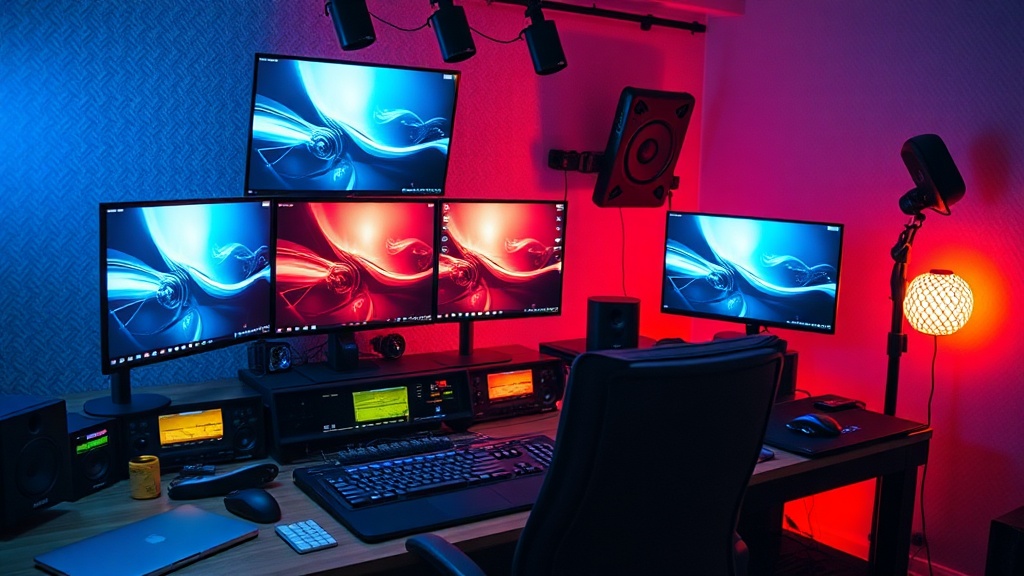
How to Set Up a Dedicated Stream Deck for Productivity

Most people assume a Stream Deck is a toy for Twitch streamers or a way to trigger flashy transitions during a gaming session. That is a fundamental misunderstanding of what the hardware actually does. At its core, a Stream Deck is a programmable macro pad with a high-resolution LCD interface. If you are using it only to launch Discord or mute a microphone, you are wasting a piece of high-end hardware. This guide explains how to transition a Stream Deck from a "gaming peripheral" into a professional productivity tool that reduces cognitive load and streamlines repetitive workflows.
Stop Treating Your Stream Deck Like a Macro Pad
A standard macro pad sends a string of keystrokes to your computer. A Stream Deck, however, is a visual command center. The mistake most users make is trying to replicate keyboard shortcuts—like Ctrl+C or Alt+Tab—onto a single button. This is inefficient because it forces you to still look at your keyboard to confirm the command. To get actual ROI on this device, you need to move beyond keystrokes and move toward system-level integrations and API-driven actions.
Instead of mapping a button to "Copy," you should be mapping buttons to complex, multi-step workflows. A real workflow might involve opening a specific Slack channel, launching a Docker container, and setting your Spotify playlist to "Deep Focus" simultaneously. This is where the device moves from being a novelty to a critical component of your desk setup.
Phase 1: The Hardware and Software Audit
Before you start dragging icons onto buttons, you need to ensure your environment is ready. I have seen too many users struggle with lag or unresponsive buttons because they are trying to run high-intensity automation through a subpar USB hub.
- Direct Connection: Whenever possible, plug your Stream Deck directly into your computer's USB port rather than a non-powered USB hub. If you must use a hub, ensure it is a high-quality, powered hub to prevent latency during heavy CPU tasks.
- The Software Ecosystem: The base Elgato Stream Deck software is fine for basic tasks, but for true productivity, you need to look at third-party plugins. This is where the actual value lies.
- Visual Hierarchy: Do not clutter your screens with 15 different icons. Your brain needs to recognize a shape or color instantly. Use high-contrast, minimalist icons. If you have to "read" the icon to know what it does, the design has failed.
Phase 2: Essential Plugins for Professional Workflows
The default software is a skeleton. To make this a productivity powerhouse, you need to install specific plugins that allow the device to communicate with your OS and your professional tools. If you are building a high-end workstation, you likely already care about building a custom mechanical keyboard for tactile feedback; the Stream Deck should serve as the digital extension of that physical precision.
1. System Monitoring (CPU, RAM, and Network)
If you are a developer, video editor, or data analyst, knowing your system's health is vital. Use plugins that display real-time CPU usage, RAM consumption, and network speeds directly on the buttons. This allows you to see if a background process or a runaway script is hogging resources without ever having to pull up Task Manager or Activity Monitor.
2. Application-Specific Control
Generic commands are useless. You want deep integration. For example:
- Adobe Creative Cloud: Map specific functions like "Export for Web" or "Toggle Masking" to dedicated buttons.
- VS Code: Create buttons for running specific build commands, toggling the terminal, or jumping to specific lines of code.
- Microsoft Teams/Slack: Instead of hunting for the "Mute" button in a tiny window, have a dedicated, highly visible button that changes color when you are muted.
3. The "Focus Mode" Macro
This is the most effective way to use a Stream Deck. Create a single button labeled "Deep Work." When pressed, this single action should:
- Launch your primary IDE or documentation browser.
- Open a specific Spotify playlist.
- Trigger a "Do Not Disturb" status on Slack and Teams.
- Close non-essential applications like Mail or News sites.
Phase 3: Organizing Your Folders and Pages
The biggest pitfall in Stream Deck usage is "folder nesting fatigue." If you have to press a button to get to a folder, and then another button to get to a sub-folder, you have defeated the purpose of the device. The goal is zero-latency execution.
The Rule of Three: I recommend a maximum of three levels of depth.
- Level 1 (Main Page): Your most frequent actions (Mute, Play/Pause, App Launchers, Focus Mode).
- Level 2 (Contextual Folders): Specific tools for a task (e.g., an "Editing" folder for Premiere Pro or a "Coding" folder for Terminal commands).
- Level 3 (Deep Dives): Only for extremely rare, complex macros that you don't want cluttering your main view.
If you find yourself navigating too deep, you aren't using the device correctly. You should be using "Multi-Actions." A Multi-Action allows you to trigger a sequence of events on a single press. Instead of having a folder for "Morning Routine," just make a single Multi-Action button on the main page that executes the entire sequence.
Phase 4: Troubleshooting and Optimization
Even with a dedicated device, you will run into issues. If you notice a delay between pressing a button and the action occurring, check these three things:
- USB Polling/Power: As mentioned, if you are running a complex setup with a high-end mechanical keyboard and a Stream Deck, ensure your USB bus isn't saturated.
- Plugin Conflicts: Some plugins attempt to poll the system too frequently. If you have a CPU monitoring plugin set to refresh every 100ms, it might actually be causing the micro-stutters you are seeing in your main applications. Set refresh rates to a more reasonable 1-2 seconds.
- Software Overhead: The Stream Deck software itself is a background process. If you are working on a machine with limited resources, ensure you aren't running unnecessary visual effects or high-resolution animations on the buttons that could tax the CPU.
For those who work in high-noise environments or use specialized audio gear, ensure your Stream Deck controls are synced with your audio routing software (like Voicemeeter or Rogue Amoeba's Loopback). This ensures that when you hit "Mute" on the Stream Deck, it is actually cutting the signal at the source, rather than just visually toggling an icon in a window.
Final Verdict: Is It Worth It?
If you are a casual user, the answer is no. A Stream Deck is an investment in your workflow efficiency. However, if your job involves repetitive digital tasks, complex software switching, or high-stakes communication, it is one of the best productivity upgrades you can buy. It isn't about "shortcuts"; it is about reducing the number of decisions and physical movements required to complete a task. Stop treating it like a gaming peripheral and start treating it like a programmable hardware interface for your professional life.
Steps
- 1
Install the Configuration Software
- 2
Create Your First Custom Macro
- 3
Map Shortcuts to Specific Software
- 4
Organize Folders for Quick Access