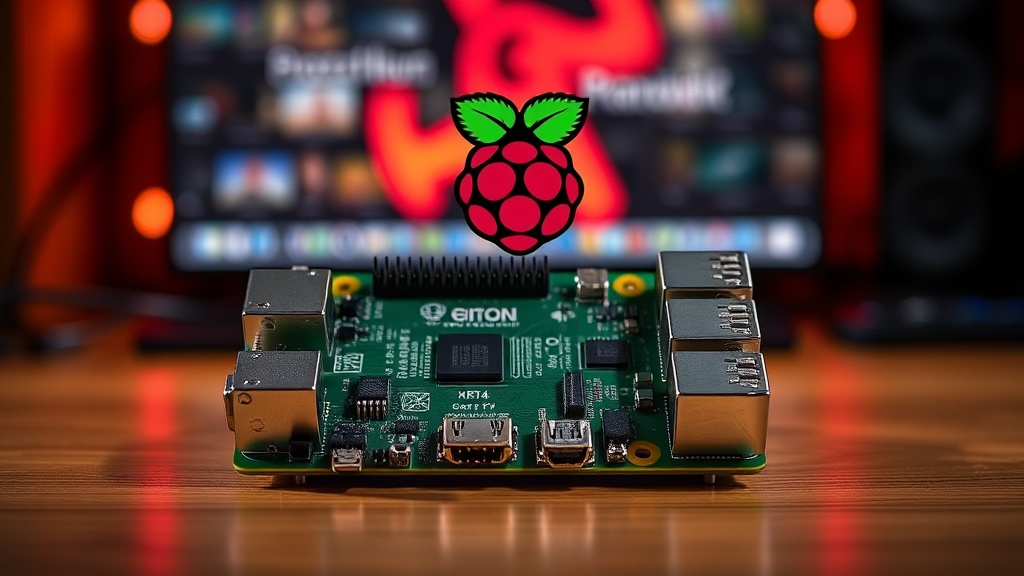
How to Set Up a Raspberry Pi as a Home Media Server

A living room is filled with the sound of frustration as a smart TV displays a spinning buffering icon mid-movie. The streaming service has hit a bandwidth bottleneck, or perhaps the built-in app is struggling with a high-bitrate file. This is the common failure point of consumer-grade streaming: you are at the mercy of third-party servers and subscription models. This guide explains how to bypass those limitations by building a dedicated home media server using a Raspberry Pi. By the end of this walkthrough, you will have a centralized, local repository for your media that serves content directly to your devices without relying on the cloud.
The Hardware Reality Check
Before you buy a single component, understand that a Raspberry Pi is not a high-end workstation. It is a low-power single-board computer. If you try to run a heavy 4K HDR Plex stream with complex transcoding on a Raspberry Pi 3, you will fail. The CPU will spike to 100%, the frame rate will drop, and your media will stutter. To do this right, you need to match your hardware to your expectations.
For a reliable media server, I recommend the following hardware stack:
- The Board: Raspberry Pi 4 Model B (4GB or 8GB RAM version). While the Pi 5 is faster, the Pi 4 remains the sweet spot for stability and thermal management in 24/7 server environments.
- Storage: Do not run your media off a microSD card. MicroSD cards have limited write cycles and will fail under the constant I/O of a media server. Use a high-quality USB 3.0 External Hard Drive or an SSD.
- Power Supply: Use the official Raspberry Pi USB-C power supply. Cheap third-party chargers often cause undervoltage warnings when the Pi is under load from external hard drives, leading to data corruption.
- Cooling: A passive aluminum heat sink or a small fan is mandatory. A server that stays on 24/7 will throttle its performance if it cannot dissipate heat.
- Network: An Ethernet cable. Do not attempt to run a media server over Wi-Fi if you want consistent high-bitrate playback. Local network congestion is the enemy of high-quality video.
Step 1: Preparing the Operating System
You aren't going to use the standard desktop version of Raspberry Pi OS. That version includes unnecessary GUI elements that eat up RAM and CPU cycles. Instead, you will use Raspberry Pi OS Lite (64-bit). This is a headless version of the OS, meaning there is no desktop environment. You will manage it via the command line, which is much more efficient for a dedicated server.
Download the Raspberry Pi Imager from the official website on your primary computer. Insert your microSD card into your computer and follow these steps:
- Select Raspberry Pi OS Lite (64-bit) as the operating system.
- Choose your SD card.
- Open the advanced settings (the gear icon) to pre-configure your settings. This is critical.
- Set a hostname (e.g.,
mediaserver). - Enable SSH (Secure Shell) so you can control the Pi from your main computer.
- Set a username and a strong password.
- Configure your Wi-Fi (though Ethernet is preferred) and your local country code.
- Click "Write" to flash the image.
Once the process is complete, insert the card into the Pi, connect the Ethernet cable, and plug in the power. You will now access the Pi from your main computer's terminal (Mac/Linux) or PowerShell (Windows) using the command: ssh username@mediaserver.local.
Step 2: Optimizing the Linux Environment
Once you are logged into the command line, the first thing you must do is update the package repositories. Even a freshly flashed image is likely outdated. Run the following commands:
sudo apt update && sudo apt upgrade -y
After the update finishes, you should mount your external storage. A media server is useless without a place to store the actual files. Plug in your USB 3.0 hard drive. To ensure the Pi automatically mounts this drive every time it reboots, you need to identify the drive's UUID (Universally Unique Identifier).
Run lsblk to see your drives. Look for your external drive (usually sda1). Once identified, create a mount point:
sudo mkdir /mnt/media
sudo mount /dev/sda1 /mnt/media
To make this permanent, you must edit the /etc/fstab file. Add a line at the bottom that includes your drive's UUID and the mount point you just created. This ensures that if the power goes out, your media folder is ready immediately upon reboot.
Step 3: Installing the Media Server Software
You have two primary choices for the software layer: Plex or Jellyfin.
Plex is the industry standard. It is incredibly polished, has excellent apps for every Smart TV and gaming console, and is very easy to set up. However, it is proprietary. If you want to use features like hardware-accelerated transcoding (converting a file on the fly to fit a device's capabilities), you have to pay for a Plex Pass.
Jellyfin is the open-source alternative. It is completely free and offers many of the features Plex charges for. It is slightly more complex to set up and the client apps (for your TV or phone) aren't quite as ubiquitous, but for a tinkerer, it is the superior choice for privacy and control.
For this guide, we will focus on Jellyfin because it maximizes the utility of your hardware without a subscription. To install it, the most efficient method is using Docker. Docker allows you to run the software in an isolated "container," which prevents dependency conflicts and makes updates much cleaner.
Install Docker with these commands:
sudo apt install docker.io -y
sudo systemctl enable --now docker
Now, create a docker-compose.yml file. This file acts as a blueprint for your server. You will define the Jellyfin image, map your /mnt/media folder to the container, and specify the ports (usually 8096). This is a much more professional way to manage services than installing them directly onto the OS.
Step 4: Managing Your Library and Direct Play
The most common mistake users make is expecting the Raspberry Pi to do the heavy lifting of transcoding. If you have a 4K movie file and try to play it on a phone that only supports 1080p, the Pi will attempt to "transcode" that file in real-time. This will crush the CPU, and the video will lag.
The solution is Direct Play. To achieve this, you must ensure your media files are in a format your devices can natively understand. I recommend using MKV containers with H.264 video and AAC audio. This combination is the "universal language" of media. Almost every device—from an old iPad to a modern Smart TV—can play these files without asking the Raspberry Pi to do any extra work. If you use Direct Play, the Pi simply "serves" the file, which requires very little CPU power.
When organizing your files, use a strict naming convention. This allows the software to automatically pull metadata (posters, descriptions, actor info):
/mnt/media/Movies/Inception (2010)/Inception (2010).mkv/mnt/media/TV Shows/The Bear/Season 01/The Bear - S01E01.mkv
Step 5: Maintenance and Long-term Stability
A home server is not a "set it and forget it" device if you want it to remain reliable. You need to establish a maintenance routine. Every month, log in via SSH and run your updates. If you are using Docker, use a tool like Watchtower. Watchtower is a container that monitors your running containers and automatically updates them when a new version is released. This keeps your security patches current without manual intervention.
Furthermore, monitor your temperatures. If you notice the server becomes sluggish during high-traffic periods, use the command vcgencmd measure_temp to check the CPU heat. If it is consistently above 60°C, you need better cooling or a more robust airflow setup in your media cabinet.
Finally, consider a backup strategy. Your media files are likely large and hard to replace. While the Raspberry Pi holds the "brain" of the operation, your external hard drive holds the "body." Periodically back up your metadata and configuration files to a secondary location, such as a cloud service or another external drive, to ensure that a single hardware failure doesn't result in a total loss of your organized library.
Steps
- 1
Prepare Your Hardware and OS
- 2
Install Media Server Software
- 3
Connect Your Media Storage
- 4
Configure Network Access and Streaming